Copyright © MZ Creative Studio
Thank you for purchasing our theme. If you have any questions that are beyond the scope of this help file, please feel free to publish your question here.
To use a WordPress theme you must have a working version of Wordpress and Divi theme already installed. For information in regard to installing the WordPress platform, please refer to the WordPress Codex here
After that extract the main zip file, you'll see these folders and files:
This template works well for WordPress 4.9+, update yours if needed.
Installing the theme can be done in 2 ways. You can upload the theme ZIP file using the built in WordPress theme upload, or copy the files through an FTP client.
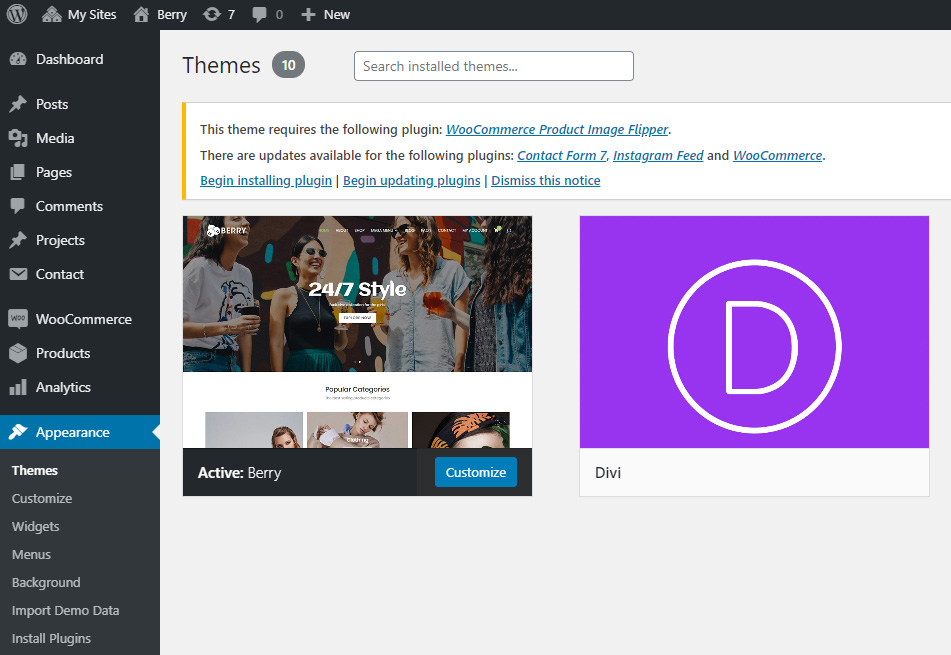
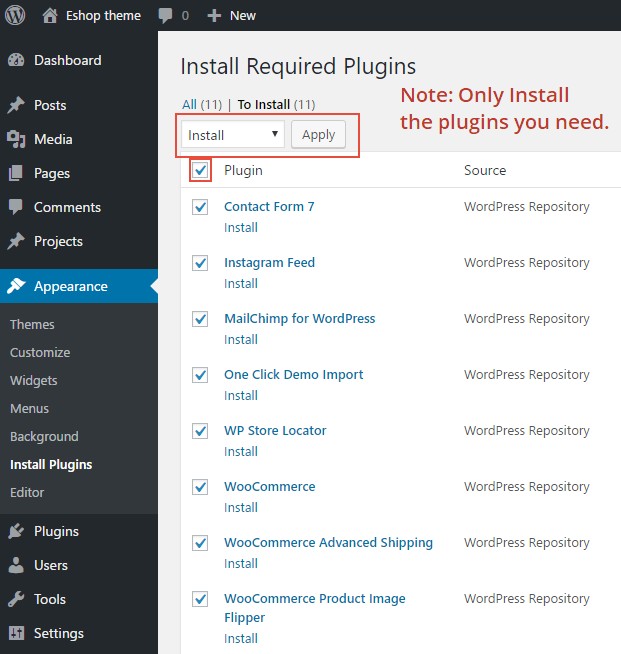
After activating the theme, please install the required plugins.
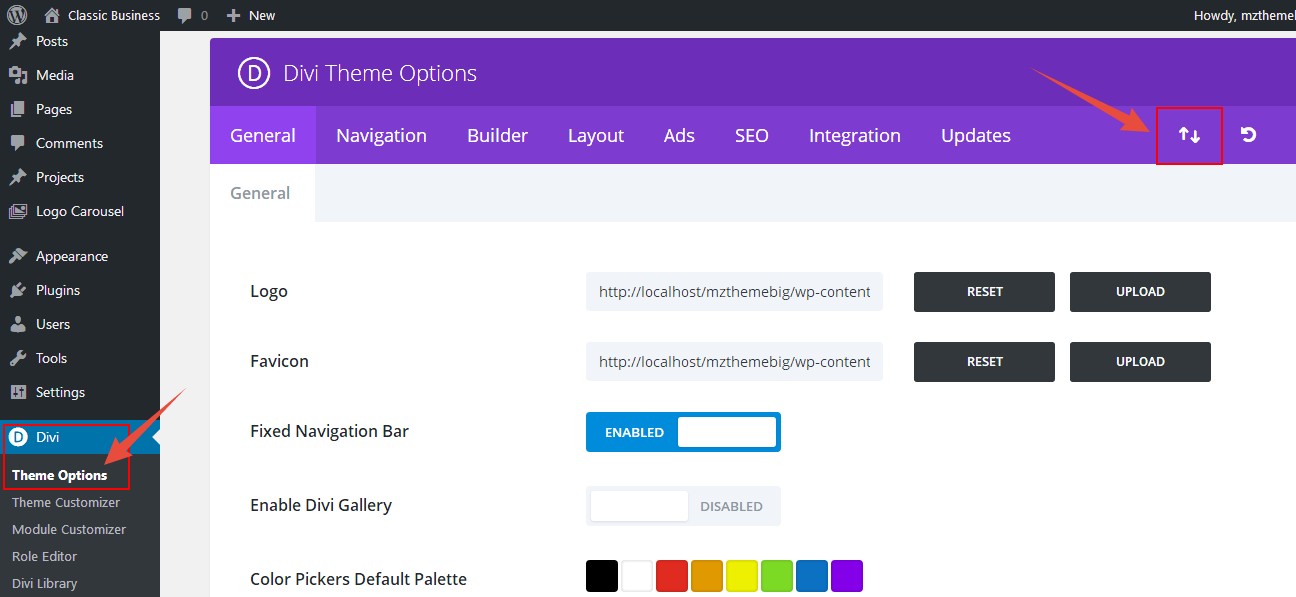
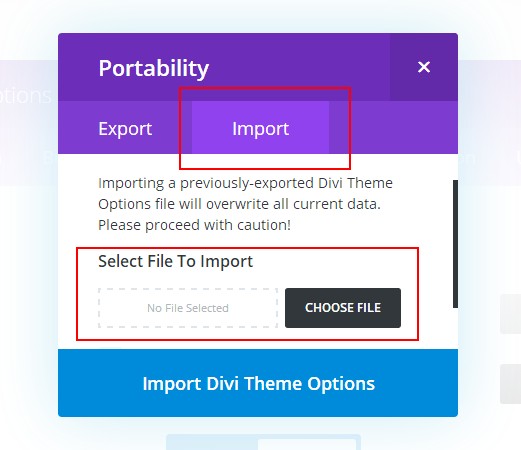
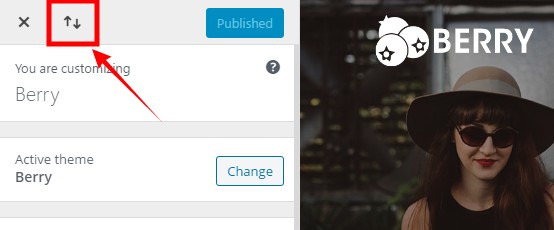
To set up logo for your website, you need to:
Click here for more details about theme options
The predefined colour scheme for your website, please go to Appearance > Customize
There are many detail colour setting options, you could define your own style base on the given settings. Click here for more details about customizer
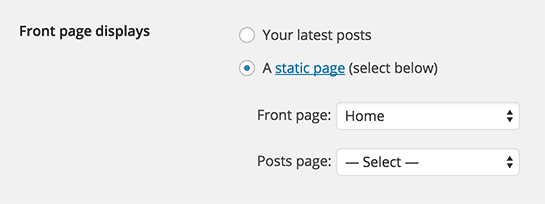
To set up the homepage, you need to create a page which you want to use it as homepage, after that, go to Settings > Reading , activate A static page (select below) , select the page from Front page: drop-down menu.
Navigate to Appearance > Widgets, Sidebar, Footer 1, Footer 2, Footer 3 and Footer 4 are used in this theme. 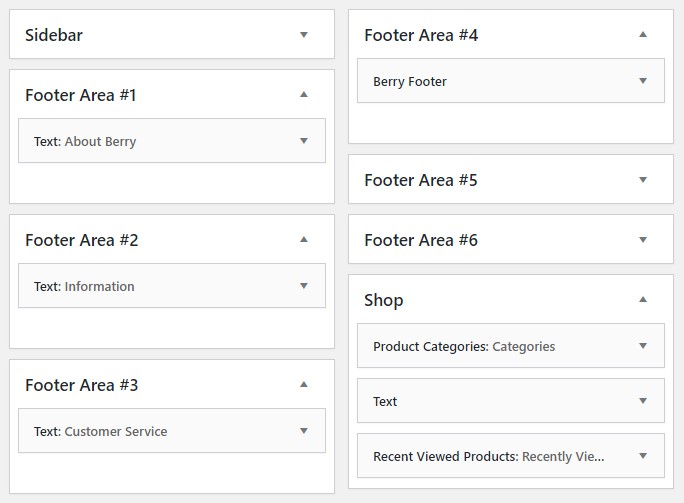
Please navigate to Appearance > Menus.
For creating "Mega Menu", please add a class 'mega-menu' to the menu item. Like this: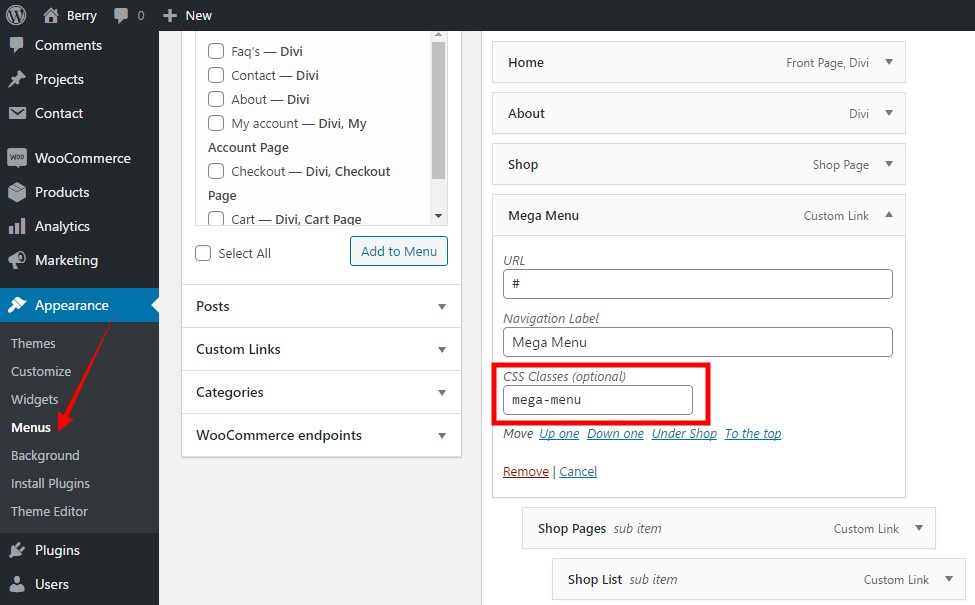
1. For "Mega Menu" image and wishlist icon, please add these like this:
In navigation label, add image html tag and replace src with your uploaded image url.<img src="your_image_url" width="100%" />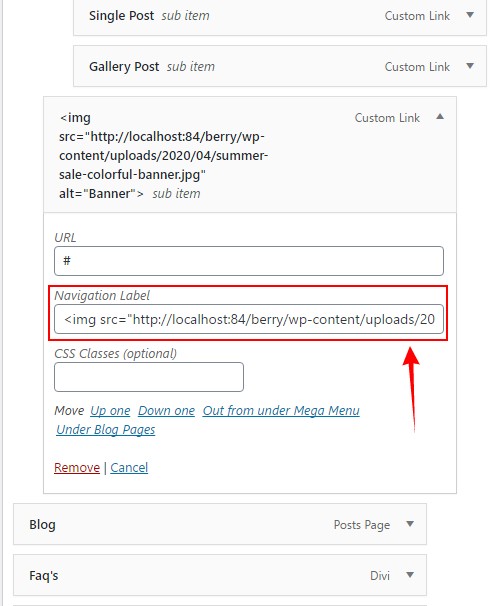
3. Make sure "Primary Menu" is checked.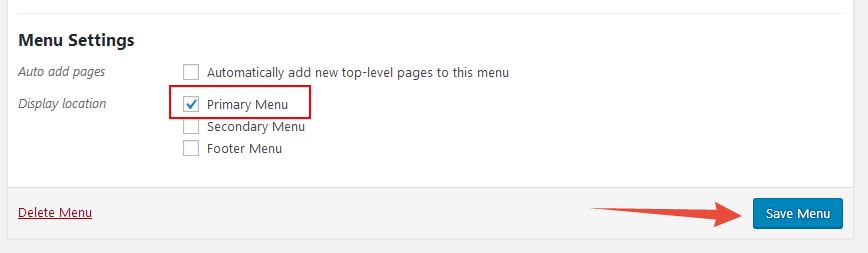
If you want to add custom style to theme, please go to Appearance > Editor, put your css code.
OR
go to Divi > Theme Options > Scroll down to bottom and you will see "Custom Css" option, put your css code in there.
Theme options in this theme provide you the control over the colors used in the theme. Furthermore, you can change the title and button's text of Mini Cart.
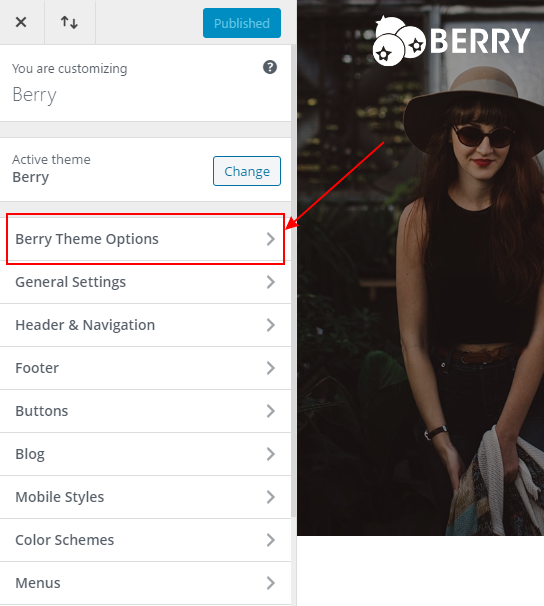
To access theme options, please go to: Appearance > Customize > Berry Theme Options.
Please remember to click "Save Changes" button after updating any color or text.
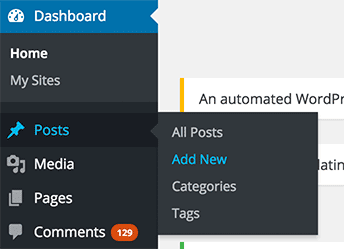
To create a new post, go to Posts > Add New from the admin panel. (refer to this article)
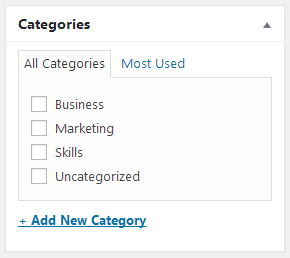
Each post should be set one category at least. You could set category to organize your posts.
You could set "Featrued Image" for posts, the featured image could be shown on top of post
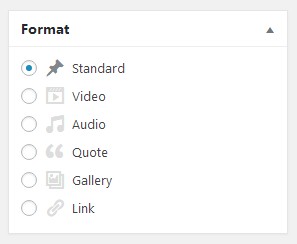
The theme provide 6 formats for your post, theses formats would affect the layout of your post in list and content page. You need the to click on the radio button to change the format for a post:
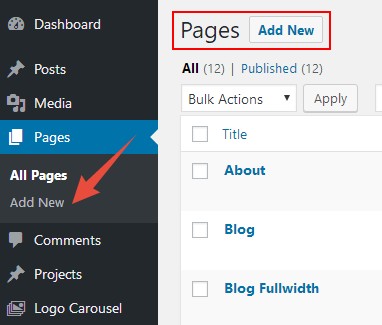
a. Go to Pages / Add New, you could build all kind of pages you like.
b. Adding video:
Note: Video is not included in demo because it is premium so you will replace your video in slider.
For adding video, you will go to Video Homepage -> Click on Full-width Slider Module Settings. Then go to Slide and scroll down to Background section.
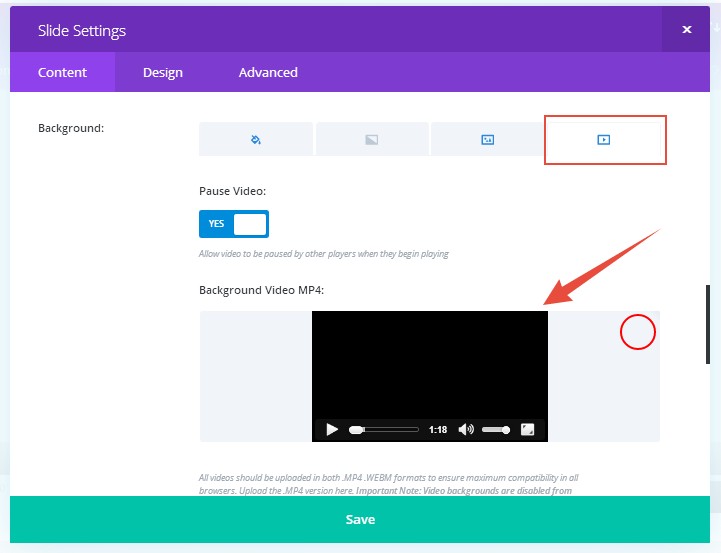
Note: You will be able to adjust all other settings of modules via divi-theme builder. For more info, see section below.
The theme provide easy to use page builder for your pages, press the button "Use the Divi Builder" to enable it. Following is a brief introduction for the page builder:
Click here for more details about page builder
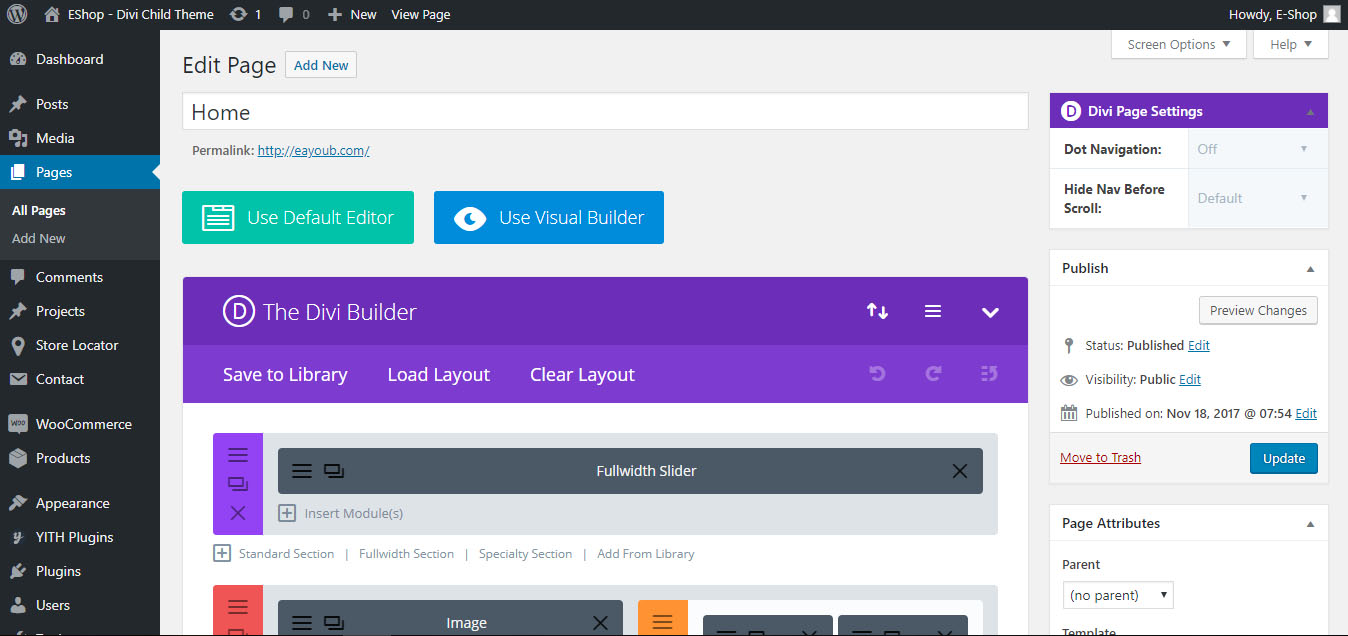
Click here to find more details about each module
Once you have build a layout via the page builder, and you want to clone them to other page/posts, you could save the current layout to a template and load then in the other page/post page builder section.
Click here for more details about page builder template save/load
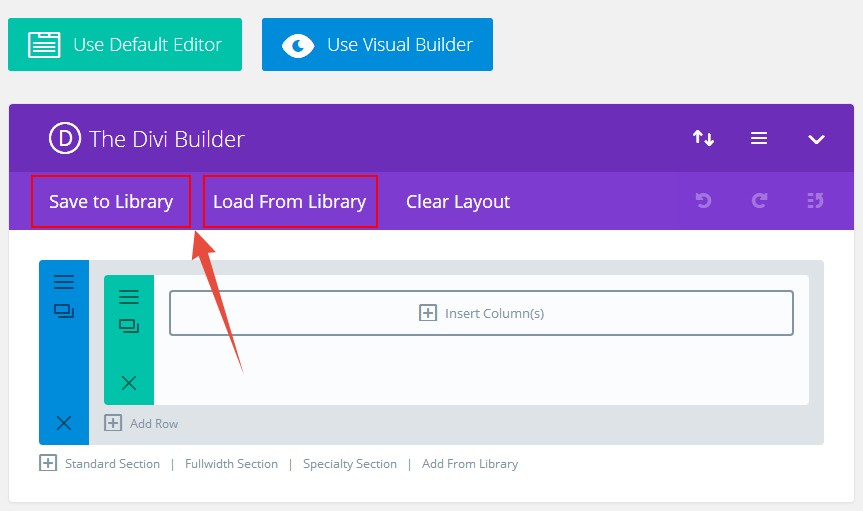
Once again, thank you for purchasing this theme. If you have any questions that are beyond the scope of this help file, please feel free to publish your question here.
The Best,
MZ Creative Studio Team